
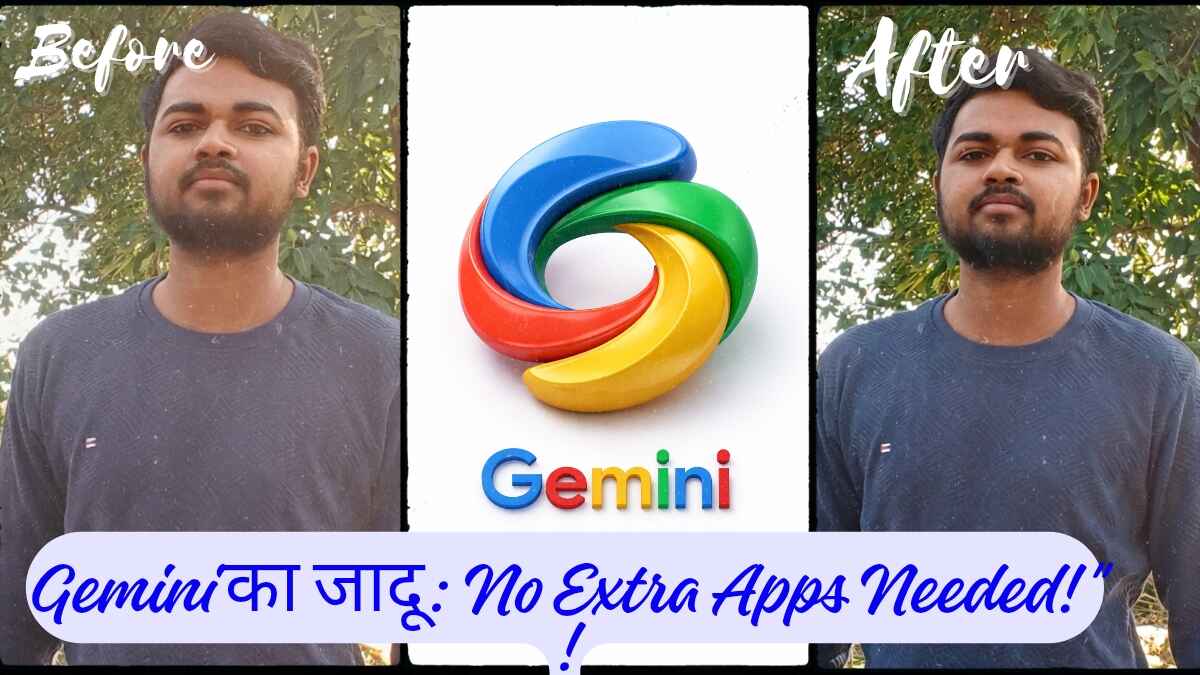
Restore Photos: Many people want to upscale their old, blurry photos, often resorting to expensive apps that come with numerous difficulties. But wait—your phone already has Google Gemini, which can easily and effectively upscale your blurry pictures. While most people use Gemini for asking questions and generating images, its multimodal capabilities also make it an excellent image editor.
‘Upscaling’ versus ‘Regeneration’: Understanding the technology
There’s a significant difference between upscaling and regeneration. Typical upscaling tools simply enlarge existing pixels, often resulting in a blurry image with no added detail. Google Gemini, on the other hand, not only increases the resolution of low-quality images but also regenerates missing details and corrects imperfections, producing significantly sharper and more realistic pictures.
Step-by-step guide: How to upscale photos with Gemini
How to convert photos to 4K quality using Google Gemini –
- First, open the Google Gemini app on your phone.
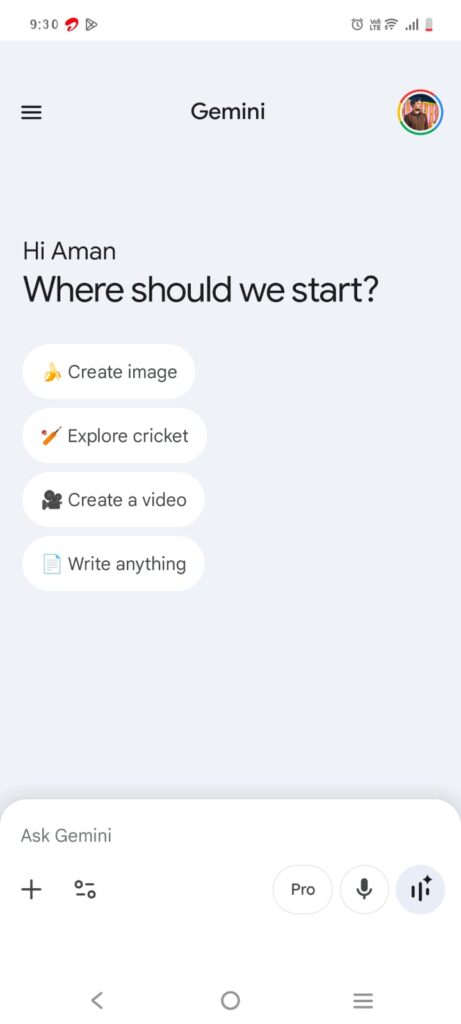
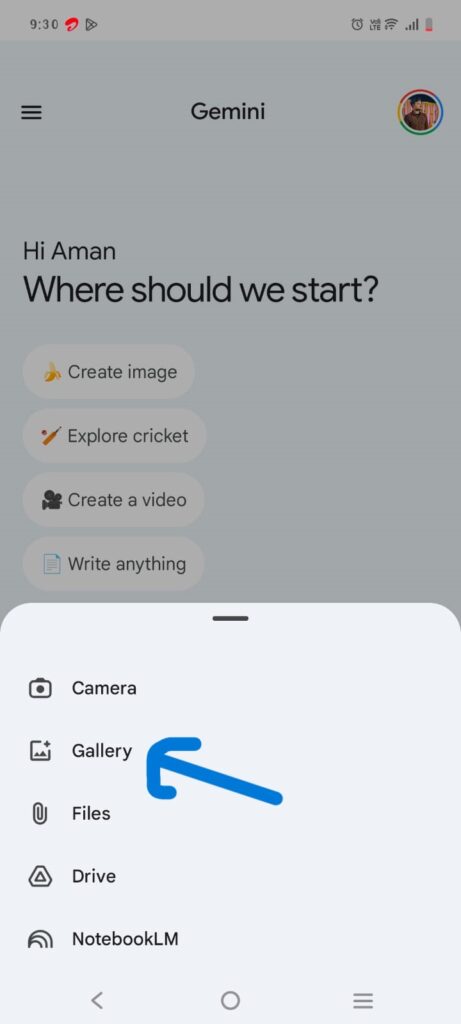
- Then, go to the chat box and click on the image icon to upload the photo you want to upscale.
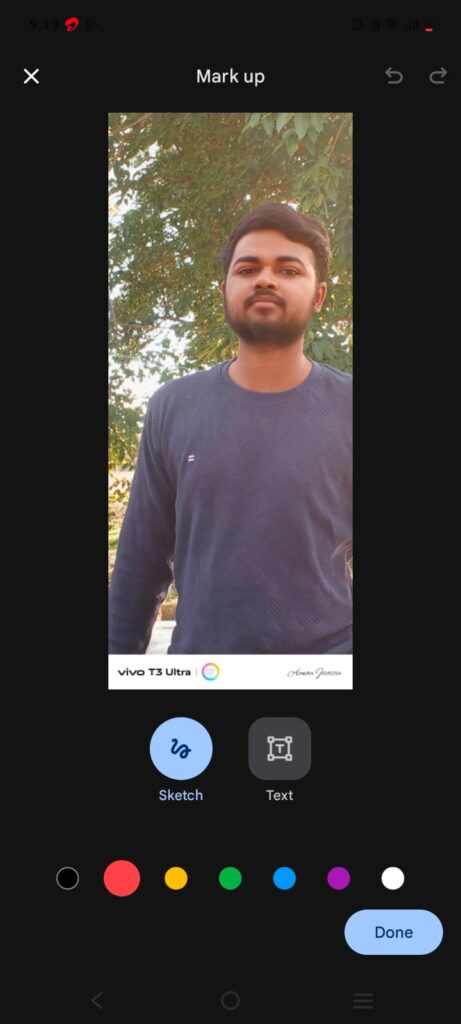
- Once the photo is uploaded, copy the prompt provided below and paste it into the chat box.
Ultra-high resolution 4K image upscale of the original photo, preserve exact face identity, preserve facial structure, preserve skin tone, preserve background composition, no changes in pose or framing.
Note- this prompt generated by using chatgpt
Enhance sharpness, increase fine details, improve texture clarity, natural skin texture, realistic pores, crisp edges, clean lighting, balanced contrast, reduce noise and blur, professional DSLR quality, high dynamic range, photorealistic, ultra-detailed, 4K UHD, studio quality, zero distortion, zero modification, only quality enhancement.
Negative Prompt:
face change, different person, altered features, smooth plastic skin, extra details, extra objects, background change, color shift, cartoon, painting, stylized, CGI look, blur, artifacts, oversharpen, overexposed, low quality
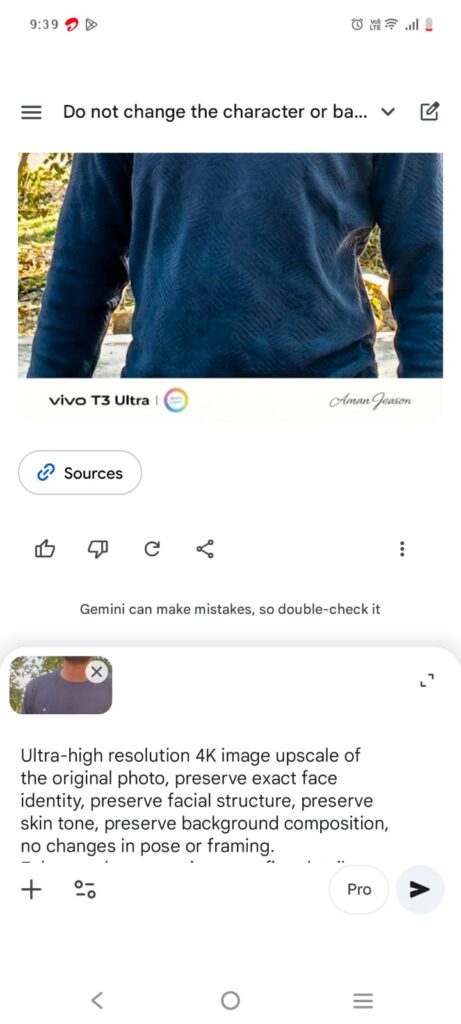
- In just a few seconds, Google Gemini will regenerate your photo. If you aren’t satisfied with the result, simply type ‘refine more’ in the chat box.

Pro tips: What to do for better results?
- Add a negative prompt by writing ‘no plastic look’ and ‘don’t change face shape’ to ensure natural results.
- Pay attention to the lighting. Tell the AI whether you want natural lighting or a cinematic look.
- If you use a more advanced version of Google Gemini, you can expect even higher quality results.
Conclusion
If you don’t want your images to be saved to Google’s data after being upscaled, you can turn this feature off in the Gemini app settings. This allows Gemini to upscale your photos without saving them to your history. So, if you have any blurry or old photos, be sure to try them out with Google Gemini.

Aman Kumar is an AI strategist and technical creator with a background in industrial production and computer applications. As a Production Incharge at Frontier Alloy Steel, he applies a disciplined, data-driven approach to prompt engineering. Combining 2+ years of technical expertise with hands-on AI research, Aman provides verified, practical guides to help users master generative tools with professional-grade precision.